For some listings, it's okay if customers book on the same day - or even
right before the time slot. However, for listings that require advance preparation
or setup, you will want to set the minimum notice required before booking.
For example, if you need to order food and beverages for a party, you might
set the minimum notice as 5 days so you have time to order food from the
caterer. Similarly, if you need to schedule extra employees for an event,
you might set the minimum notice as 15 days.
Note: By default,
the minimum notice for all listings is 24 hours. This means that if your
event starts at 7:00 pm, customers can book the listing up to 6:59 pm the
day before.
Scenario: You've created a "New Year's Eve Party" listing
for December 31. This is a private party that customers can book in your
event space. You need to order food and beverages, and schedule extra employees,
so you want to set the minimum notice as 15 days.
|
1.
|
Click Manage and select Listings.
|
|
2.
|
On your Listings page, scroll down to the listing
and click Edit below the listing name.
|
|
3.
|
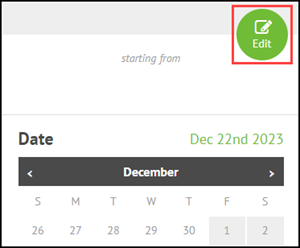
Click the Edit button above the calendar.
|
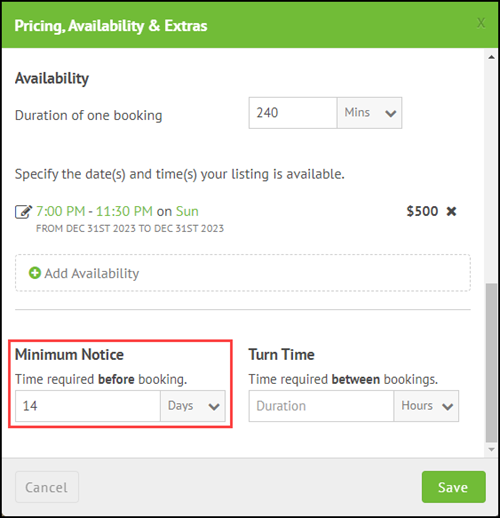
The Pricing, Availability & Extras dialog displays.
|
4.
|
Scroll down to the Minimum Notice section.
|
|
5.
|
In the Time required before booking field:
|
|
a.
|
Select either Days or Hours
from the drop-down list.
|
|
b.
|
Enter the number of days or hours notice you require. |

Comments
0 comments
Please sign in to leave a comment.