Sometimes, you will need to switch a customer booking from one listing to
a completely different listing. There are many reasons why this might be
necessary. For example, a customer might book a class and then call to reschedule.
If the class is not available on another date, or the other class dates are
fully booked, or the customer can't make it to any of the alternate class
dates, you can offer to transfer their booking to a different class.
Note: This
procedure can only be used to switch the booking from one listing to another.
You cannot use the Move to new listing function to: (a)
charge or refund the customer if there is a difference in prices, (b) add
or remove add-ons, or (c) add or remove resources. The best option is to
refund and cancel the existing booking and then enter a completely new booking
for the customer if the listings are different prices or you need to adjust
add-ons or resources.
|
1.
|
Identify an alternate listing that is acceptable to the customer:
|
|
a.
|
Confirm the date and time. |
|
b.
|
Confirm that there are spots available. |
|
2.
|
(Optional) Search for the existing customer booking. |
|
5.
|
Use the navigation options to go to the applicable date. |
|
6.
|
(Optional) In the panel to the right of the calendar, from the
Quick listing manager, select the listing that
the customer booked. The calendar will only show bookings for
that listing. This can make it easier to find the customer's
booking in the calendar.
|
|
7.
|
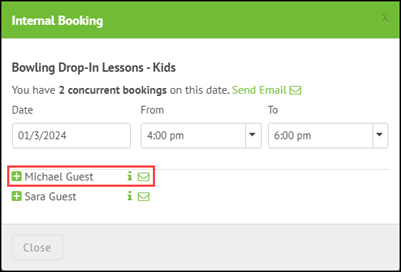
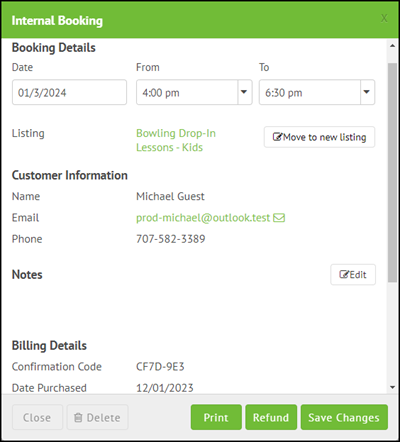
Click the customer's booking. |
If the listing was only booked by one customer, their booking details display
automatically. However, if the listing was booked by more than one customer,
they will be listed below the booking date and time. To see the customer's
booking details, click the i icon beside their name.
|
8.
|
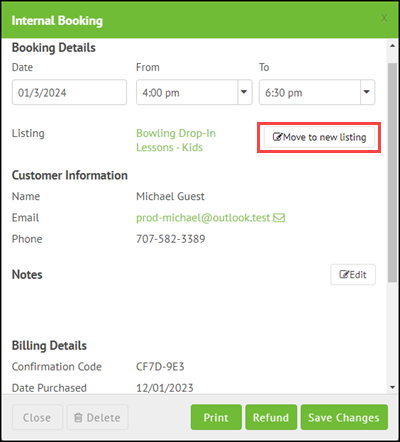
Click Move to new listing.
|
|
9.
|
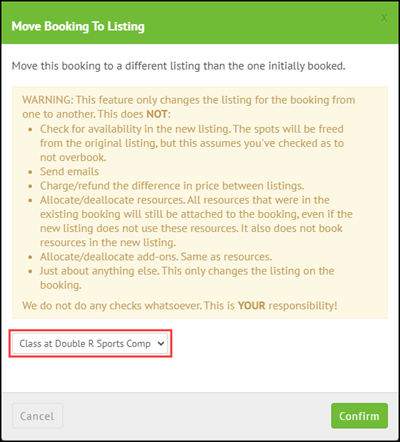
Select the new listing from the drop-down: |
|
11.
|
The Booking Details section shows the
Date, From, and To
from the existing booking. Use these fields
to enter the date and time from the
the alternate listing that the customer wants
to book.
|
Important!You must change the Date, From, and To fields before you click Save Changes.
If you do not do this, the system will not move the customer's booking to
the new listing.
Video tutorials

Comments
0 comments
Please sign in to leave a comment.