There are a variety of reasons why you might have to issue a refund to a
customer. For example, a customer might make a booking and decide at a later
time that they want to cancel it. If the customer is eligible for a refund
(based on the cancellation policy), you must look up the customer's booking
and manually enter a refund in PlaceFull.
Note: Always
follow the applicable policy (listing policy or store policy) for refunds.
Issue the customer's refund before you cancel their booking
in PlaceFull. Refunds are not automatically issued when you cancel a booking.
You can only use PlaceFull to issue refunds for bookings that were paid by
credit card or debit card. Bookings that were paid by cash or check must
be refunded using your in-store point-of-sale (POS) system.
|
1.
|
(Optional) Search for the existing customer booking. |
|
4.
|
Use the navigation options to go to the applicable date. |
|
5.
|
(Optional) In the panel to the right of the calendar, from the
Quick listing manager, select the listing that
the customer booked. The calendar will only show bookings for
that listing. This can make it easier to find the customer's
booking in the calendar.
|
|
6.
|
Click the customer's booking. |
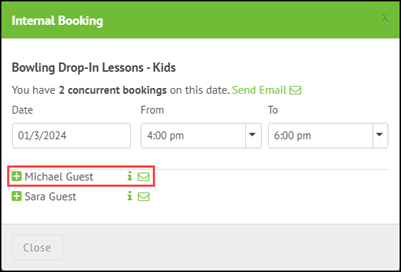
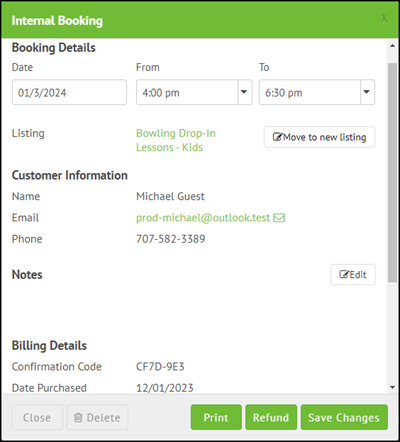
If the listing was only booked by one customer, their booking details display
automatically. However, if the listing was booked by more than one customer,
they will be listed below the booking date and time. To see the customer's
booking details, click the i icon beside their name.
|
8.
|
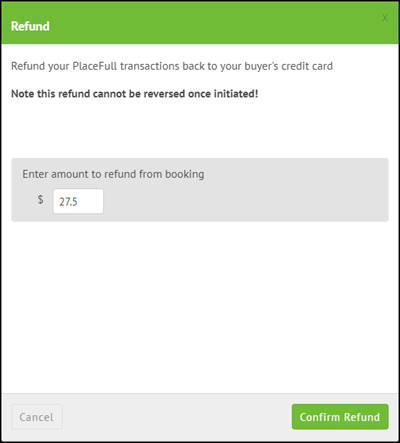
Enter the eligible refund amount(s) for the booking. You can
refund the booking amount, the deposit amount, or both the booking
and deposit amounts.
|
Follow the applicable policy (listing policy or store policy) when entering
the refund amount(s). For example, at many businesses, customers may only
be eligible for a partial refund if they cancel a booking after a certain
amount of time has passed. Similarly, deposits on some bookings may be non-refundable.
An email is sent to the customer to confirm their refund.
Video tutorials

Comments
0 comments
Please sign in to leave a comment.