You can manually make a resource unavailable for a specific period of time.
This can be useful if, for example, someone booked a room for a private New
Year's Eve party before you started using PlaceFull, and you need to make
sure the room does not become double booked by customers booking other party
listings.

|
4.
|
Use the navigation options to go to the applicable date. |
|
5.
|
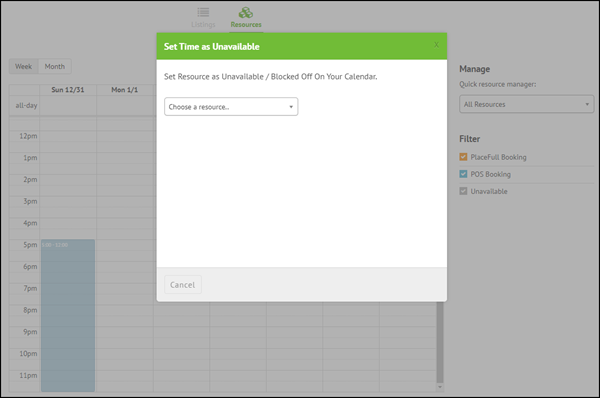
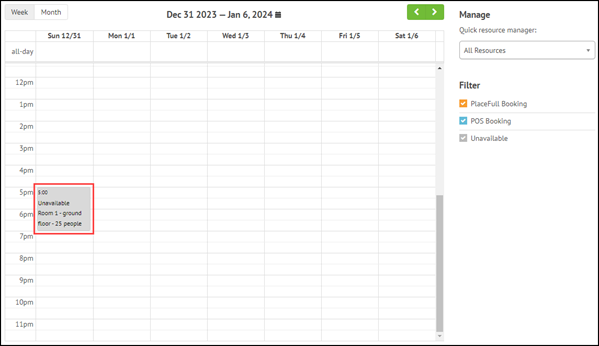
In the Calendar, click and drag to select the
period of time during which you want to make the resource unavailable.
When you release your mouse the
Set Time as Unavailable dialog displays.
|
|
6.
|
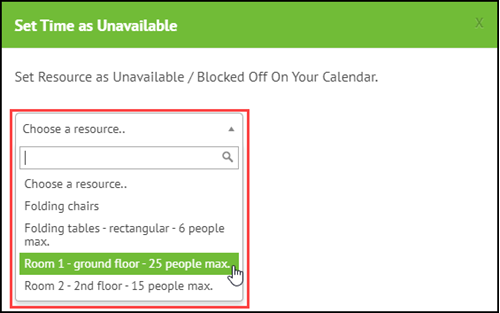
Click the Choose a resource drop-down and select
the resource that you would like to make unavailable.
|
|
7.
|
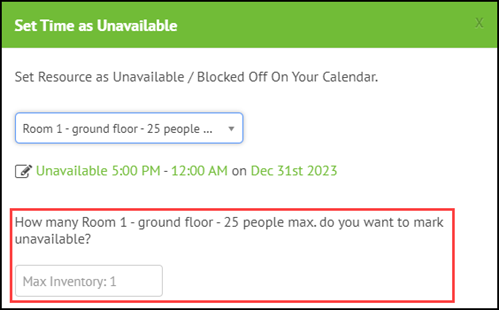
For
How many [resource name] do you want to mark unavailable?,
enter the quantity of the resource that you want to make unavailable.
The maximum inventory is displayed to help you enter the correct
quantity.
|
|
8.
|
(Optional) In the Notes text box, enter any
notes related to why you are making the resource unavailable
for this period of time.
|
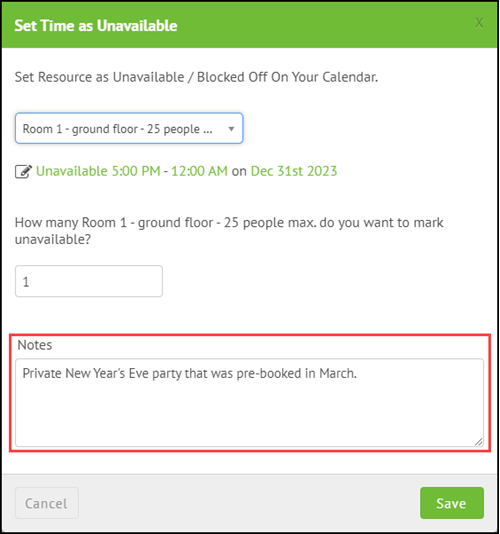
The resource will be unavailable for the selected period of time.

Comments
0 comments
Please sign in to leave a comment.