There are three reasons why a listing may appear unavailable to customers:
-
That period of time has been blocked off in the booking calendar
-
The minimum notice period for the listing has passed
-
There are no more spots available (the listing is sold out)
Unblocking a listing in the booking calendar
If a listing was accidentally blocked from customer bookings, you can unblock
it.
|
3.
|
Use the navigation options to go to the applicable date. |
|
4.
|
In the panel to the right of the calendar, from the
Quick listing manager, select the listing that
you want to unblock.
|
|
5.
|
In the calendar, click the gray box for the
blocked off period of time. The
Edit Existing Unavailable Time dialog displays.
|
|
6.
|
Click Delete. (The button is grayed out until
you hover your mouse over it.)
|
The gray box will disappear from the calendar. This is because the block
has been removed for the listing. The block remains for other listings.
Changing the minimum notice period for the listing
If the minimum notice period has passed, you will need to reduce or remove
the minimum notice period to open up the listing for booking.
|
1.
|
Click Manage and select Listings.
|
|
2.
|
On your Listings page, scroll down to the listing
and click Edit below the listing name.
|
|
3.
|
Click the Edit button above the calendar.
|
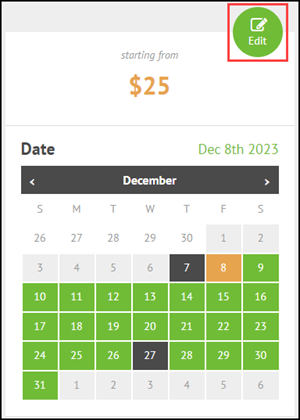
The Pricing, Availability & Extras dialog displays.
|
4.
|
Scroll down to the Minimum Notice section. Reduce
or remove the Time required before booking so
there is sufficient time for you or the customer to book the
listing.
|
Checking if there are spots available
|
4.
|
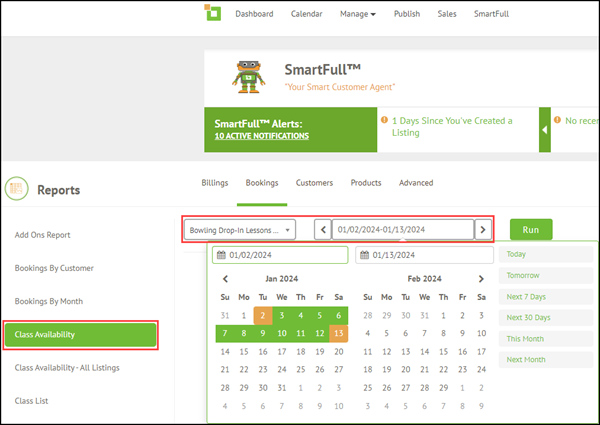
Click Class Availability.
|
|
5.
|
Select the listing the customer wants to book. |
|
6.
|
Do one of the following: |
-
Select the date the customer wants to book.
-
Select a span of days, including the date the customer wants to book.
|
8.
|
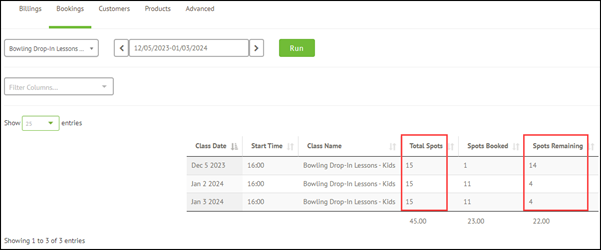
Check if spots are available for the customer's desired date
and other dates:
|
-
Total Spots: The maximum number of spots that can
be booked for the date.
-
Spots Booked: How many spots are currently booked.
-
Spots Remaining: How many spots are remaining that
can be booked for the date.
|
9.
|
If there are insufficient or no spots available for the customer's
desired date, check if the customer would be interested in booking
on another date with more availability.
|

Comments
0 comments
Please sign in to leave a comment.