Sometimes you will need to email specific customers who have booked a listing.
Using the calendar
|
3.
|
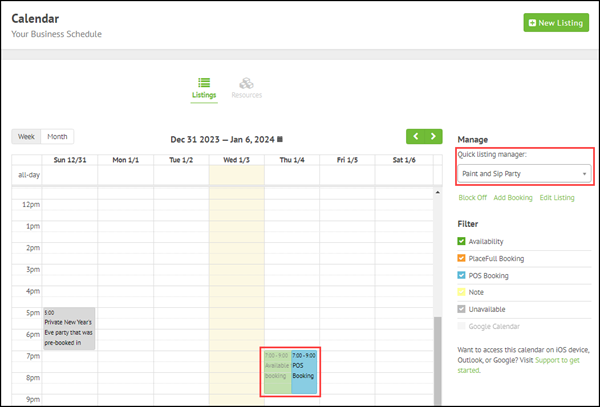
Use the navigation options to go to the start date of the booking.
|
|
4.
|
In the panel to the right of the calendar, from the
Quick listing manager drop-down, select the
booked listing.
|
|
6.
|
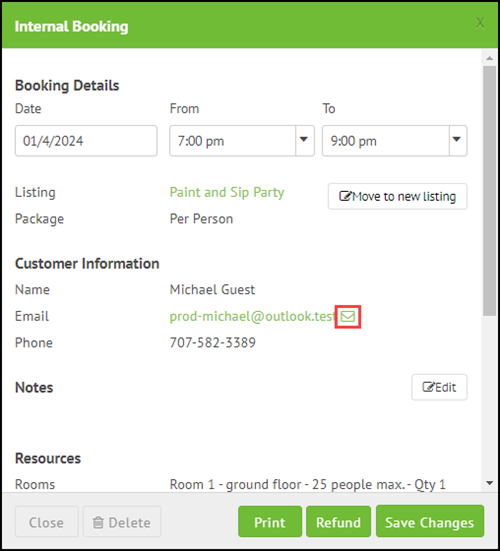
Under Customer Information, click the
email icon next to the customer's name.
|
|
7.
|
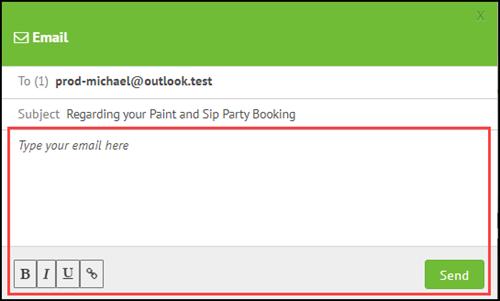
Type (or paste) your email message into the text box. |
Use the formatting options to make specific words or phrases bold, italic,
or underlined. You can also add hyperlinks.
Using the upcoming feed
|
2.
|
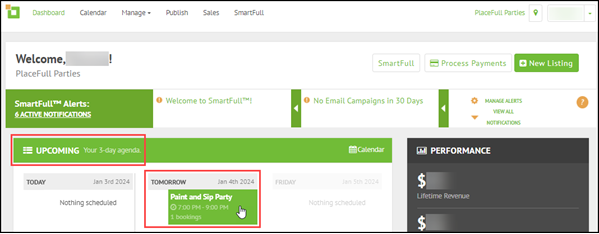
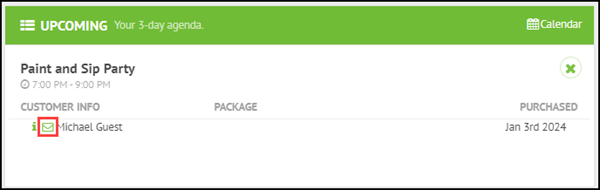
Under Upcoming, click the booked listing.
|
|
3.
|
Click the email icon next to the customer's
name.
|
|
4.
|
Type (or paste) your email message into the text box. |
Use the formatting options to make specific words or phrases bold, italic,
or underlined. You can also add hyperlinks.
Using the bookings feed
|
2.
|
Under Bookings, find the booking and click the
email icon next to the customer's name.
|

|
3.
|
Type (or paste) your email message into the text box. |
Use the formatting options to make specific words or phrases bold, italic,
or underlined. You can also add hyperlinks.

Comments
0 comments
Please sign in to leave a comment.