Customers usually make bookings online by themselves. However, some customers
may phone the store or come into the store in person to make a booking. When
this happens, you can manually enter the customer's booking in PlaceFull.
If the customer wants to make multiple bookings, the best way to do this
is by entering the bookings using the shopping cart.
Note: A manual
booking entered through the shopping cart is identified as a
PlaceFull Booking in the booking calendar.
|
1.
|
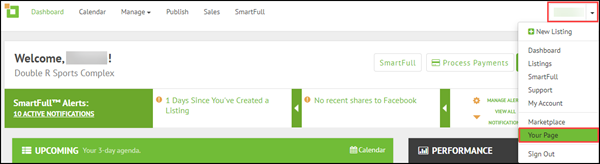
In the top right corner of the screen, click the
drop-down arrow to the right of your user name
and select Your Page.
|
|
2.
|
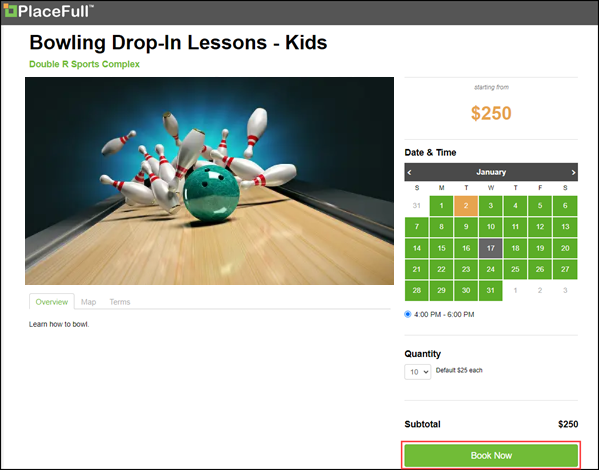
Scroll down until you find the listing the customer wants to
book.
|
|
4.
|
Select the Date & Time and enter any other
booking details.
|
|
6.
|
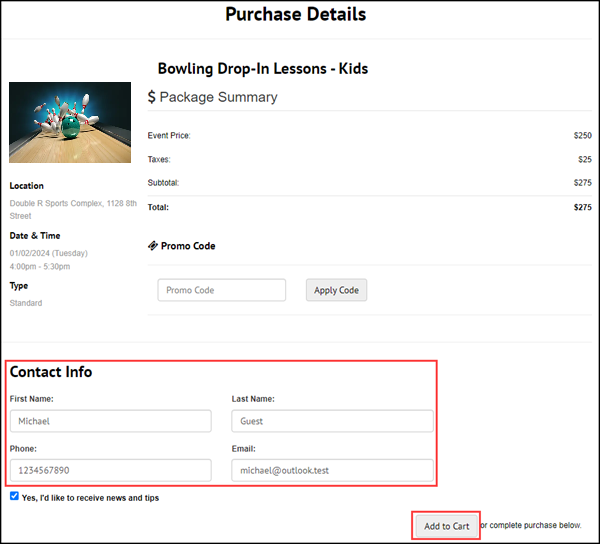
Enter the Contact Info.
|
|
8.
|
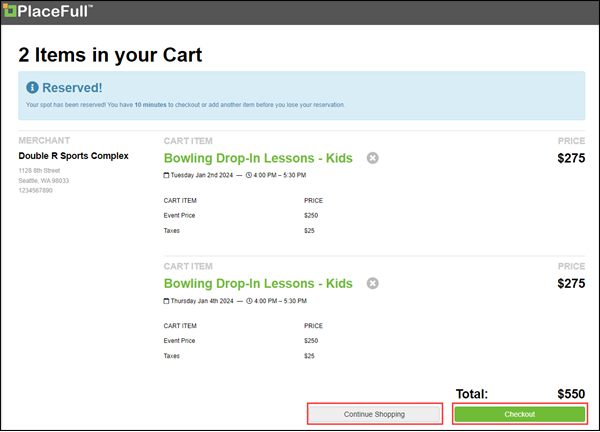
Click Continue Shopping.
|
|
9.
|
Continue to add listings that the customer wants to book. |
|
10.
|
Click Add to Cart for each listing.
|
Note: If you do not click Add to Cart,
the listing will not be added to the cart and the customer's purchase may
be incomplete.
|
11.
|
When the cart contains all of the customer's bookings, click
Checkout.
|
|
12.
|
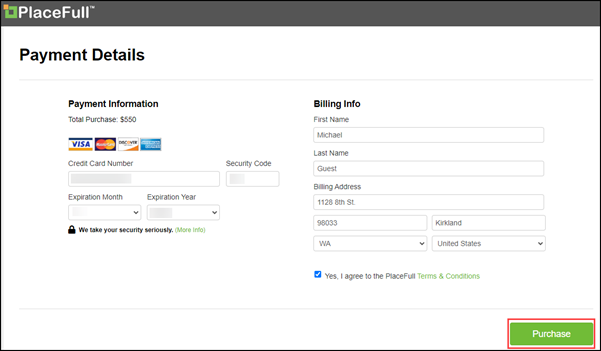
Enter the customer's Payment Information and
Billing Info.
|
|
13.
|
Select
Yes, I agree to the Terms & Conditions.
|
|
15.
|
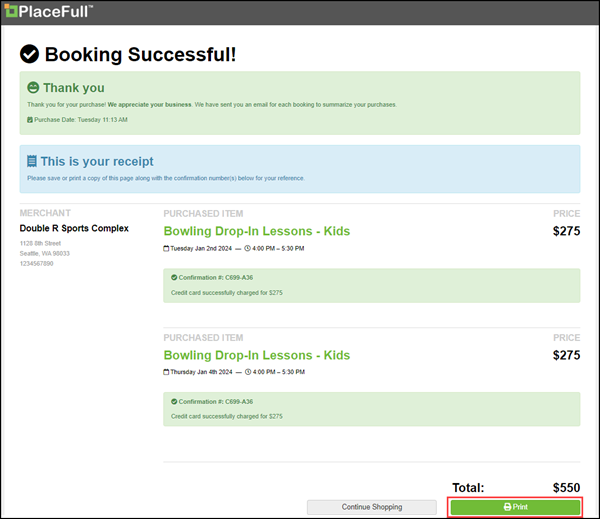
(Optional) Click Print to print a receipt for
the customer.
|

Comments
0 comments
Please sign in to leave a comment.