The name, price, and description of add-ons will probably change over time.
Thankfully, it's easy to update add-ons.
Note: If you
are changing the price of the add-on and you have added the add-on to multiple
listings, you will need to update the price of the add-on in every listing.
|
1.
|
Click Manage and select Listings.
|
|
2.
|
On your Listings page, scroll down to the listing
and click Edit below the listing name.
|
|
3.
|
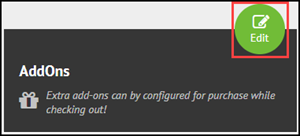
Click the green Edit button next to
Add Ons.
|
|
4.
|
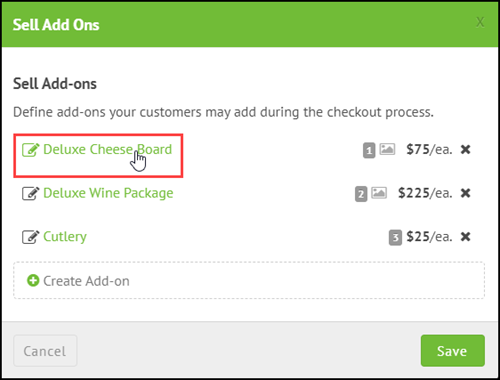
Click the hyperlinked add-on name. |
|
5.
|
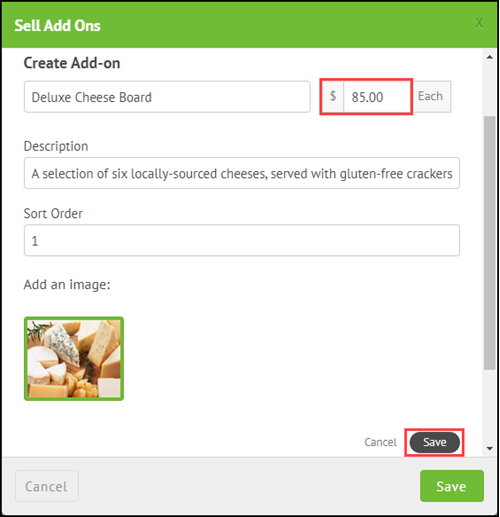
Enter a new Name, Price, or
Description for the add-on.
|
|
6.
|
(Optional) To update the add-on image: |
|
a.
|
Hover your mouse over the thumbnail of the image. |
|
b.
|
Click the red X in the top right corner.
|
|
c.
|
Click OK to confirm that you want to delete
the image.
|
|
d.
|
Click the box containing the + icon and upload
a new image.
|
Note: Remember to click the gray Save button
before you click the green Save button. If you do not click
the gray Save button, the add-on will not be updated.

Comments
0 comments
Please sign in to leave a comment.