The contact information for listings, such as phone number and location,
are automatically pulled from the Business Info section
for your account. However, this contact information may be for your head
office, not your retail store(s). If necessary, you can change the contact
information for listings.
You can also control whether the location displays for listings or not. For
example, if you have a listing that can be booked at multiple locations,
you would want to hide the location for the listing.
|
1.
|
Click Manage and select Listings.
|
|
2.
|
On your Listings page, scroll down to the listing
and click Edit below the listing name.
|
|
3.
|
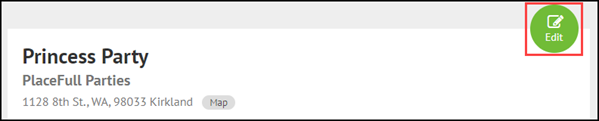
Click the Edit button to the right of the listing
name.
|
|
4.
|
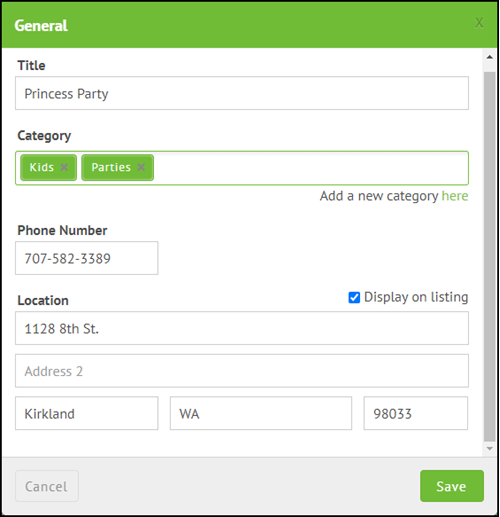
(Optional) Click in the Category field and select
the categories you want to assign to the listing.
|
|
5.
|
(Optional) Enter the Phone Number people should
call for booking inquiries or assistance.
|
Note: If you leave the Phone Number
field blank, the phone number displayed on the listing defaults to the number
in the Business Phone field in the
Business Info section for your account.
|
6.
|
(Optional) Enter the Location where the listing
can be booked.
|
Note: If you do not want the location to display on the
listing, clear the check mark beside Display on listing.

Comments
0 comments
Please sign in to leave a comment.