You can integrate your PlaceFull bookings calendar into your Apple Calendar.
|
1.
|
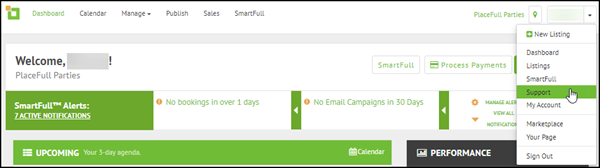
Click the drop-down arrow in the top right corner and select
Support.
|
|
2.
|
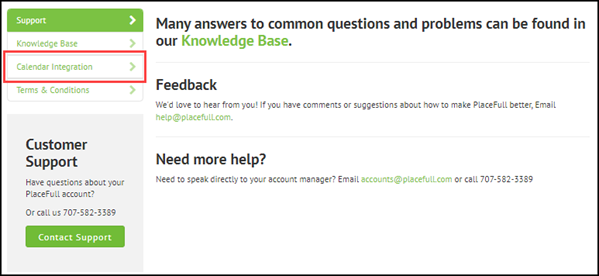
Click Calendar Integration.
|
|
3.
|
Scroll down to the Your Custom Calendar Links
section and do one of the following:
|
-
Copy the calendar link with customer information.
Select this link if you want the integrated bookings calendar to
display customer information such as name and email address.
-
Copy the calendar link without customer information.
Select this link if you do not want the integrated bookings calendar
to display any customer information.
|
4.
|
Click the Calendar icon to open the
Calendar app.
|
|
5.
|
Click File and select
New Calendar Subscription.
|
|
6.
|
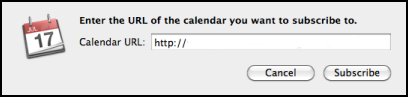
Paste the PlaceFull calendar link you copied
earlier.
|
|
8.
|
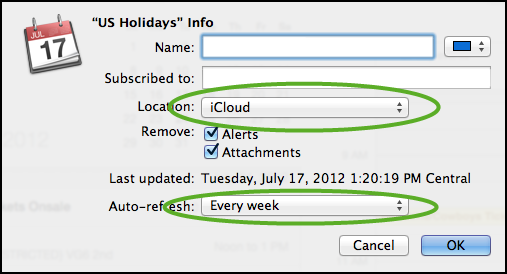
Enter a Name for the calendar.
|
|
9.
|
(Optional) Select a color scheme. |
|
10.
|
Click Location and select the account you want
to use:
|
|
11.
|
(Optional) Clear the check boxes beside Alerts
and Attachments if you want to to display alerts
and attachments from the integrated calendar in your Apple Calendar.
|
|
12.
|
Click Auto-refresh and select
15 minutes.
|

Comments
0 comments
Please sign in to leave a comment.